
Dyslexia reading app and tool: friendly text reader
Paste any text. Adjust font, spacing, and color. Read at your own pace with line tracking that keeps your eye on the right line.
Why a reading tool helps a dyslexic reader
Reading with dyslexia is rarely a single problem. It is a stack of small frictions that add up. The eye loses its place between lines. The next word is harder to predict because the brain spends more time on the current one. A page of dense black text on bright white paper produces glare that makes the letters seem to swim. Each of these frictions is small in isolation, but they compound during a longer passage.
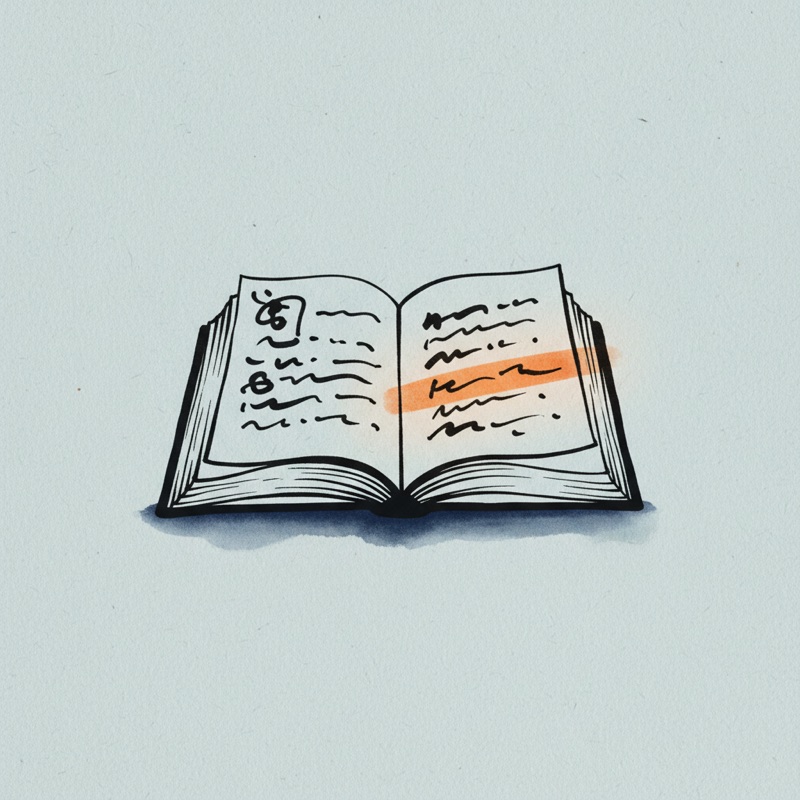
A dyslexia friendly reader does not change how anyone reads. It changes the page so the page works with the reader. Larger font reduces the visual decoding load. Wider line spacing keeps the lines from competing for attention. A softer background color, often a warm cream or pale yellow, removes the glare that pure white produces on a screen. Line tracking, a gentle highlight on the line you are reading, prevents the most common reading interruption: skipping a line and re-reading the same one.
Research from the International Dyslexia Association and several peer reviewed studies on visual stress confirm that these adjustments are not preferences. They are accessibility settings that meaningfully reduce the cognitive cost of reading. The numbers are smaller than some marketing claims suggest, but the direction is consistent: when a dyslexic reader is given control over font, spacing, and color, reading endurance and comfort improve. Comprehension, when measured at the same passage length, stays at least equal and often improves because the reader is not spending energy fighting the page.
The Kindlexy Reading Tool exposes the settings that matter and skips the rest. There is no scoring, no time pressure, no comparison to a benchmark. The tool is designed for the moment a parent says "let me make this easier for you" or the moment an adult reader wants to enjoy a long article without ending in a headache.
How to use the Reading Tool
- 1
Paste your text
Drop in a passage from a book, an article, a school assignment, or your own notes. The tool accepts plain text from any source.
- 2
Adjust the reading settings
Pick a comfortable font size and line height. Try a warm cream or pale yellow background instead of bright white. Small adjustments often produce the biggest comfort gains.
- 3
Turn on line tracking
A soft highlight follows the line you are reading. The eye does not lose its place between lines, the most common interruption when reading with dyslexia.
- 4
Read at your own pace
No timer, no score, no streak. Pause, re-read, or restart whenever you want. The tool exists to remove pressure, not to add it.
When parents and learners use the Reading Tool
A child with a long school reading passage
Your eight year old has a half page passage to read for tomorrow. The text in the workbook is small and dense. Paste the passage into the Reading Tool, increase the font, switch to a soft cream background, and turn line tracking on. The same passage now feels approachable instead of overwhelming.
A teen reading a long article online
Your teen wants to read a long online article but the page has tiny columns and ads. Paste the article into the Reading Tool. The tool strips the visual noise and keeps just the text in a layout your teen can adjust to their own comfort.
An adult reader at the end of a long day
Reading dense text in the evening is harder when your eyes are already tired. Use the Reading Tool with line tracking on. The eye holds the line without effort, comprehension stays steady, and you finish the article instead of giving up halfway.
Bionic Mode: Bolding the start of each word to guide the eye
Bionic Reading bolds the first few letters of each word and leaves the rest in normal weight. The brain treats the bold part as a handle and auto-completes the rest of the word. For a reader with dyslexia, this small visual cue makes word-to-word jumps a little easier.
When does it help? A reader who loses their place mid-line, someone who tires on long text, a teen reading on screen. Did your eye pause at the start of each word in the sentence above? That is what Bionic Mode does.
The science is mixed. A few small studies show limited signals that Bionic Reading speeds up reading or improves comfort, while other studies find no clear difference. We mention this because the feature does not work for everyone, but some children and adults with dyslexia find that it helps them stay on the page longer. Open Bionic Mode in the settings panel on the right, adjust the intensity to your eye, and decide for yourself.
The text you paste still stays in your browser. Bionic Mode never sends data to a server; it marks words at the display layer only. If you do not like it, switch it off in one click. Your settings are saved in your browser for next time.
Auto Pacer: Set the reading rhythm with your child
Many children with dyslexia struggle with where to focus on the page. The eye gets lost between lines and the "where am I?" feeling makes reading tiring. Auto Pacer, in the settings panel on the right, is a small but real help for this load.
When you start the Pacer, the tool highlights the current paragraph and moves to the next one in a duration matched to its word count. The child only focuses where the orange tint shows. The words per minute (wpm) speed slides to the range your child is comfortable with: 200 to 250 wpm is a starting point for an average reader, 120 to 150 is a kinder tempo for a slower reader.
Auto Pacer is especially useful in two situations. When there is a long passage to finish for homework, the pacer breaks down the "how much is left?" worry into smaller chunks. When you read a chapter aloud together, the child can follow along at their own pace through the highlighted line, building parallel reading.
While the pacer runs, the child can stop it anytime with "Stop Pacer". No countdown, no score, no pressure. If the child says "wait, I want to reread this paragraph," that is exactly the kind of moment we want to support, not push past.
Frequently asked questions
+What does the Reading Tool do?
+Is the Reading Tool free?
+Where does my text go when I paste it?
+What ages is the Reading Tool suitable for?
+Do I need a dyslexia diagnosis to use it?
+Does it work on phones and tablets?
+Can I save my favorite settings?
+Will more languages be supported?
Continue reading
Daily ways to support a dyslexic child at home
Small daily practices that fit into a normal family routine.
Structured literacy: an evidence based reading approach
The six components of the reading method most strongly backed by research.
What is dyslexia? What every family should know
A calm, evidence based introduction to dyslexia for parents who are just starting.
Worksheet Generator
Turn any text into a printable practice sheet, split by words or syllables.
Sources
- International Dyslexia Association — dyslexiaida.org
- NICHD — Reading and dyslexia research summaries
- Peer reviewed studies on visual stress, line tracking, and reading comprehension in dyslexic readers